
OrthoFinder is one of the most widely used bioinformatics tools for identifying orthologous genes across multiple species. It helps researchers understand gene evolution, gene function, and species relationships by clustering genes into orthogroups and building phylogenetic trees. Beginners often find it complex at first, but with a structured approach, OrthoFinder becomes straightforward and highly powerful.
This guide explains how to use OrthoFinder from installation to result interpretation in a clear, beginner-friendly, and practical way.
Understanding OrthoFinder and Its Purpose
OrthoFinder is designed to compare protein sequences across species and identify orthologs. Orthologs are genes in different species that evolved from a common ancestral gene. These genes usually retain similar functions, making them important for evolutionary and functional genomics studies.
OrthoFinder performs several key tasks automatically:
- Groups genes into orthogroups
- Infers gene trees
- Builds species trees
- Identifies orthologs and paralogs
- Provides evolutionary insights
Researchers use OrthoFinder in comparative genomics, phylogenetics, and genome annotation projects.
Read More: How to Install OrthoFinder: Step-by-Step Setup Guide
System Requirements Before Installation
Before installing OrthoFinder, ensure the system meets basic requirements. A Linux or macOS environment is recommended because bioinformatics tools run more efficiently in Unix-based systems. Windows users can use WSL (Windows Subsystem for Linux).
Essential dependencies include:
- Python 3.7 or higher
- Diamond (for fast sequence alignment)
- MCL (for clustering)
- FastTree or IQ-TREE (for phylogenetic analysis)
Installing these dependencies beforehand reduces errors during execution.
Installing OrthoFinder
Installation is simple and can be done using Conda, which is the easiest method for beginners.
- Step 1: Create a Conda environment
- conda create -n orthofinder_env python=3.9
- conda activate orthofinder_env
- Step 2: Install OrthoFinder
- conda install -c bioconda orthofinder
This command installs OrthoFinder along with most required dependencies.
Step 3: Verify installation
of Orthofinder -h
If the help menu appears, the installation is successful.
Preparing Input Data for OrthoFinder
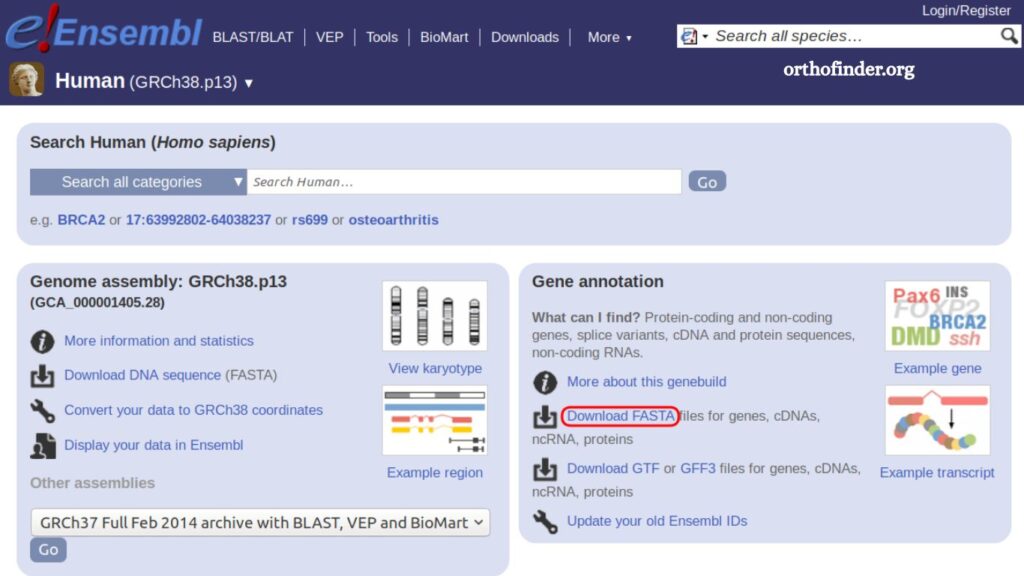
OrthoFinder works with protein sequence files in FASTA format. Each file represents one species.
Folder structure example:
ProjectFolder/
├── Species1.faa
├── Species2.faa
├── Species3.faa
Important points:
Each file must contain protein sequences, not DNA sequences
File names should clearly represent species
Avoid duplicate or incomplete sequences
Good input preparation ensures accurate results.
Running OrthoFinder for the First Time
Once the input files are ready, running OrthoFinder requires only a single command.
Basic command:
orthofinder -f /path/to/ProjectFolder
This command automatically performs all analysis steps, including sequence comparison, clustering, and tree construction.
Optional performance settings:
For faster execution on large datasets:
orthofinder -f /path/to/ProjectFolder -t 8 -a 4
Where:
-t sets the number of threads for sequence comparison
– A sets threads for downstream analysis
Using multiple threads significantly reduces processing time.
Understanding OrthoFinder Output
After execution, OrthoFinder generates several output folders. Understanding these results is essential for beginners.
Orthogroups Folder
This folder contains grouped genes across species. Each orthogroup represents genes descended from a common ancestor.
Gene Trees Folder
Gene trees show evolutionary relationships among genes within each orthogroup.
Species Tree Folder
This file represents evolutionary relationships between species.
Orthologues Folder
This contains detailed ortholog and paralog relationships between genes.
Comparative Genomics Statistics
Provides summary metrics such as the number of orthogroups and gene counts per species.
Interpreting Key Results
Beginners should focus on three main outputs:
Orthogroups
These groups help identify gene families. If genes from different species appear in the same group, they likely share similar functions.
Species Tree
This tree shows how species are evolutionarily related. It is useful for studying evolutionary history.
Ortholog Pairs
These pairs help identify genes that perform similar roles across species.
Understanding these outputs allows researchers to connect gene function with evolution.
Common Beginner Mistakes and How to Avoid Them
Many first-time users face issues due to simple mistakes.
Using DNA instead of protein sequences
OrthoFinder requires protein FASTA files. DNA input leads to errors or poor results.
Incorrect file formatting
Missing headers or incorrect FASTA formatting can break analysis.
Low-quality genome data
Incomplete protein datasets reduce the accuracy of orthogroup clustering.
Ignoring computational requirements
Large datasets require sufficient memory and CPU power.
Avoiding these mistakes improves performance and reliability.
Tips for Better OrthoFinder Results
Improving results is easy with a few best practices:
- Use high-quality annotated protein sequences
- Include multiple species for stronger evolutionary insight
- Keep the dataset consistent in format and naming
- Use sufficient computational resources for large datasets
- Review logs for errors during execution
These practices ensure more accurate biological interpretations.
Troubleshooting Common Issues
Problem: Command not found
Solution: Ensure OrthoFinder is installed in the active environment.
Problem: Memory error
Solution: Reduce the dataset size or use a system with higher RAM.
Problem: Slow execution
Solution: Increase thread usage with the -t option.
Problem: Empty output folders
Solution: Check input FASTA files for formatting errors.
Careful input validation resolves most issues quickly.
Practical Applications of OrthoFinder
OrthoFinder is widely used in modern biological research. Some key applications include:
- Gene function prediction
- Evolutionary studies
- Comparative genomics
- Species relationship analysis
- Genome annotation improvement
Its automated pipeline saves time and reduces manual errors in large-scale genomic studies.
Frequently Asked Questions
What is OrthoFinder used for?
OrthoFinder is used to identify orthologous genes across multiple species and analyze evolutionary relationships in comparative genomics studies.
Do I need coding skills to use OrthoFinder?
Basic command-line knowledge is enough. Beginners can run OrthoFinder with simple terminal commands without advanced programming skills.
What input files does OrthoFinder require?
OrthoFinder requires protein sequence files in FASTA format, with one file per species.
Can OrthoFinder run on Windows?
Yes, but it is recommended to use Linux or WSL (Windows Subsystem for Linux) for better performance and compatibility.
How long does OrthoFinder take to run?
Processing time depends on dataset size and system power. Small datasets may take minutes, while large datasets can take hours.
What are orthogroups in OrthoFinder?
Orthogroups are sets of genes from different species that evolved from a single ancestral gene.
Is OrthoFinder free to use?
Yes, OrthoFinder is open-source and freely available for academic and research purposes.
Conclusion
OrthoFinder simplifies comparative genomics by automating ortholog identification, gene tree construction, and species relationship analysis. Beginners can start effectively by preparing clean protein FASTA files, running a single command, and reviewing outputs such as orthogroups and species trees. Careful setup and correct interpretation of results improve accuracy and research value.